
-

Advanced Real Estate Option Strategies Streaming Seminar
Format: Audio SeminarsStreaming Audio - 14h 28mAdvanced Options Strategies Recorded Seminar by Jack Miller will teach you how to maximize profits while minimizing risks. With Options, you don't need to buy real estate to make a substantial profit. -
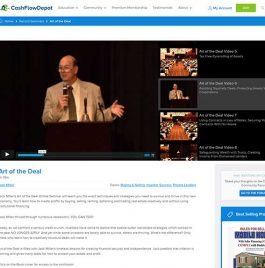
Art of the Deal Recorded Seminar
Format: Video SeminarsStreaming Video - 6h 19mArt of the Deal is filled with Jack Miller’s timeless lessons for creating financial security and independence. Jack predicts that inflation is coming and gives many ideas for how to protect your assets and profit. You'll want to pay particular attention to his advice in Lesson 4. Learn how to get more deals at better prices and with creative terms in this 14-part Video and Audio Online Seminar featuring Jack Miller. -
Buying Houses from A to Z
Format: eBooksAlmost a half of a century ago Jack Miller made up his mind to finally get serious about building a financial estate which would provide reasonable financial security and a comfortable lifestyle for his family. A major problem was that his formal education in management and electronics provided me few skills with which to achieve this. Fortunately, a couple of years before, at the age of 40, Jack had been laid off because of corporate down-sizing. He’d been forced into real estate sales by default when he’d been unable to find another job that would pay enough to support his family. As a result, he’d been able to build up a little experience in residential sales and financing. But he’d never really set specific long-term goals which would provide the financial success that he wanted; or a workable plan to reach them. Frankly, he’d been too much a dreamer and too little a realistic goal setter. In the spring of 1973 this all changed dramatically. Out of pure necessity, Jack put himself on the FAST TRACK to success. This book aims at showing you how you can do it too. -
Cash Flow Concepts
Format: eBooksCash Flow Concepts is your step-by-step guide to more cash flow and more success. magine being able to spend 3 days with the most successful real estate entrepreneur! That's exactly what you'll get with Cash Flow Concepts! In this book, you'll learn the secrets to their success and what things they would do differently if they started all over again.